If you run a business, you probably already use project management tools every single day. They help you get work done. But here's the problem. Your project management tools do not talk to your CRM. That means data gets stuck in one place. Leads fall through the cracks. And you end up doing the same work twice. That is why so many business owners search for "where can i find plugins or apps that link gohighlevel with project management tools." They want to know which project management tools play nice with their CRM and automation platform. They want one system where everything connects. In this guide, I will walk you through the project management tools that connect to your CRM. I will explain how each integration works. And I will show you how to build a workflow that turns events into action. I have set up these integrations for real clients, so I will keep everything practical and honest.
Key Takeaways
- Why Connect project management tools to Your CRM: Here is the thing.
- The Real Cost of Not Integrating: Let's talk about money.
- ClickUp Integration: ClickUp is one of the most popular project management tools on the market.
- Asana Integration: Asana is another popular project management tool.
Why Connect project management tools to Your CRM
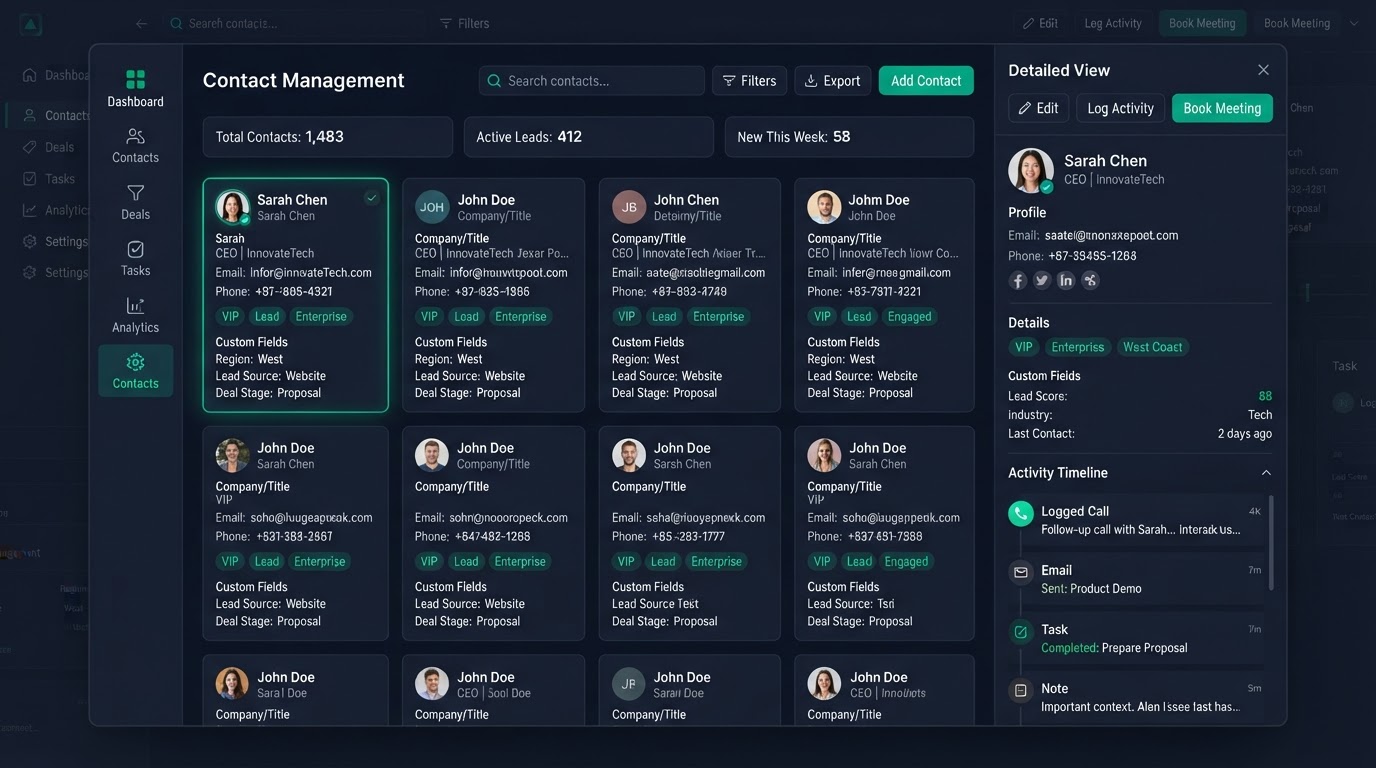
Here is the thing. Most businesses run their project management tools and their CRM as two separate systems. That creates a big problem. When task assignments, project updates, and completions happen in your project management tool, that data stays there. It never reaches your CRM. So your team has no idea what happened. When you connect the two, everything changes. Every event gets recorded in the contact timeline. You can see the full picture in one place. No more jumping between tabs. No more guessing what a customer did last. I have seen this fix a common pain point for almost every client. They close deals in their CRM but forget to create project tasks. So work does not start on time. The customer waits. And the team scrambles. That is the kind of problem a good integration solves. When your tools talk to each other, your team saves hours every week.
The Real Cost of Not Integrating
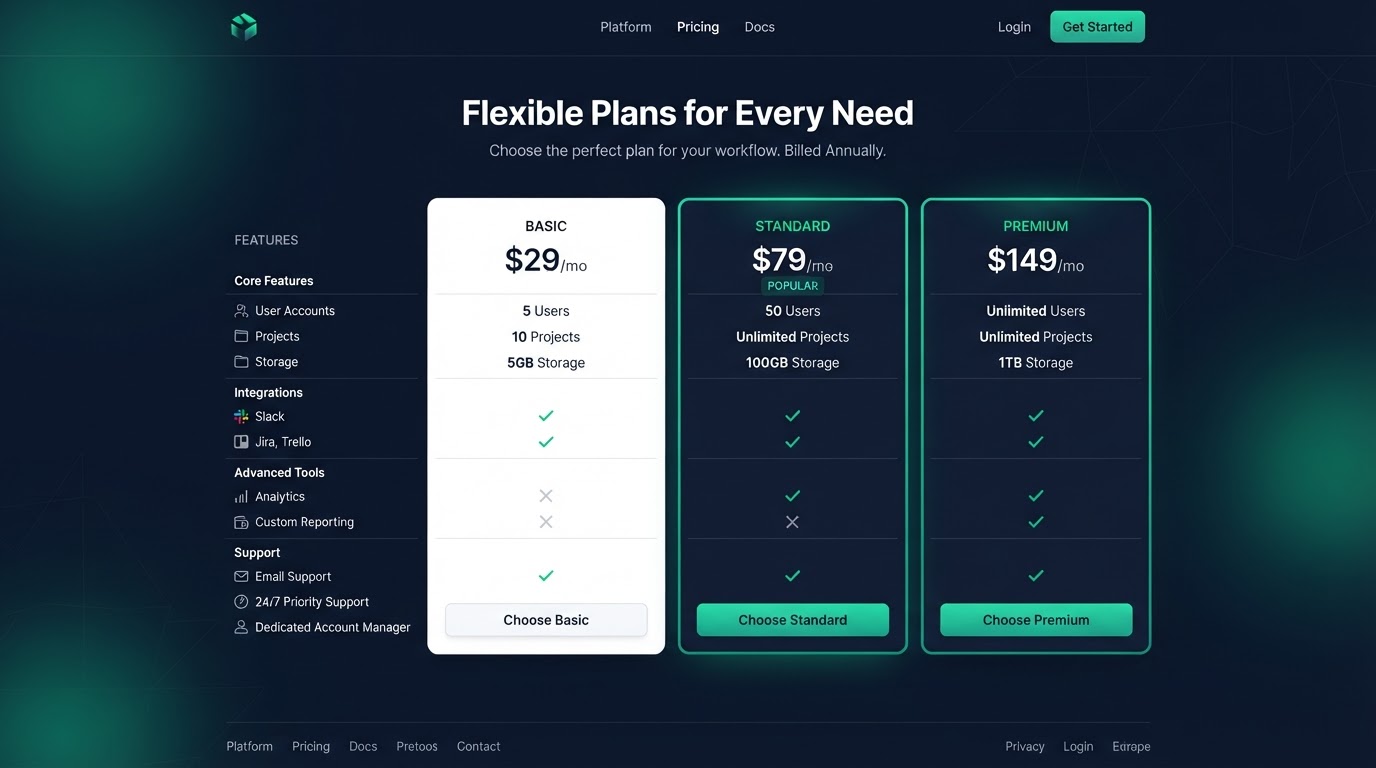
Let's talk about money. When your project management tools are not connected to your CRM, you lose time. And time is money. Your team manually copies data from one tool to another. They forget to follow up. They miss opportunities. Project management tools and CRMs are both necessary for agencies. The integration is what connects sales to delivery. Without it, you have a gap between closing and doing the work. I worked with a client who was losing leads this way. Leads came in through their project management tool. But nobody followed up for days. By the time they did, the lead had already gone to a competitor. After we set up the integration, follow-up happened instantly. Their conversion rate went up by 30% in the first month. That is the real cost of not integrating. You do not just lose data. You lose revenue.
ClickUp Integration
ClickUp is one of the most popular project management tools on the market. A lot of businesses already use it. The good news is it connects to your CRM through Zapier, Make, and webhooks. Here is how it works. When task assignments, project updates, and completions happen in ClickUp, the integration creates or updates a contact in your CRM. The event gets logged in the timeline. Then you can trigger workflows based on that event. For businesses that already use ClickUp, this is the easiest path. You do not have to switch tools. You just connect them. We set up ClickUp integrations for clients all the time. The setup usually takes a few hours. After that, it runs on its own. One thing to watch out for. Make sure you map your fields correctly. If a field in ClickUp does not match a field in your CRM, the data lands in the wrong place. We always document the field mapping before we move any data.
Asana Integration
Asana is another popular project management tool. It works in a similar way. You connect it through Zapier, Make, or webhooks. When events happen, the integration syncs them to your CRM. The main difference between Asana and ClickUp is usually the features and the price. Asana might be better for certain use cases. For example, some businesses prefer Asana because it has a simpler interface. Others prefer it because it costs less. When you connect Asana, the same rules apply. Map your fields. Test the integration before you launch it. And make sure events trigger the right workflows. We set up Asana integrations for clients who already use it and do not want to switch. The key is to pick the tool that fits your business. Then connect it properly. A bad setup is worse than no integration at all.
Monday.com Integration
Monday.com is a well-known project management tool too. It connects to your CRM the same way. Through Zapier, Make, or webhooks. When task assignments, project updates, and completions happen, the integration creates or updates a contact. Some businesses choose Monday.com because it has features the others do not. Maybe it has better reporting. Maybe it handles task assignments, project updates, and completions better. Every tool has its strengths. When we set up Monday.com for a client, we follow the same process. We audit the source tool first. We document every field and every event. Then we build the integration and test it end to end. This way nothing breaks when we go live. If you use Monday.com, you do not need to switch. Just connect it. Your CRM becomes the central hub. Monday.com becomes one of the tools that feeds data into it.
Trello and Other Options
Beyond ClickUp, Asana, and Monday.com, there is Trello. And there are many more project management tools out there. Most of them connect to your CRM through Zapier, Make, or webhooks. Trello is worth mentioning because some businesses prefer it. It might have a feature you need. Or it might fit your budget better. The point is, you have options. Here is my advice. Do not pick a tool because it is popular. Pick it because it fits your workflow. Then connect it to your CRM so the data flows automatically. That is what matters most. If you are not sure which tool to use, book a free call with us. We will look at your current setup and tell you which project management tool fits best. No pressure. Just honest advice.
How to Build a Connected Workflow
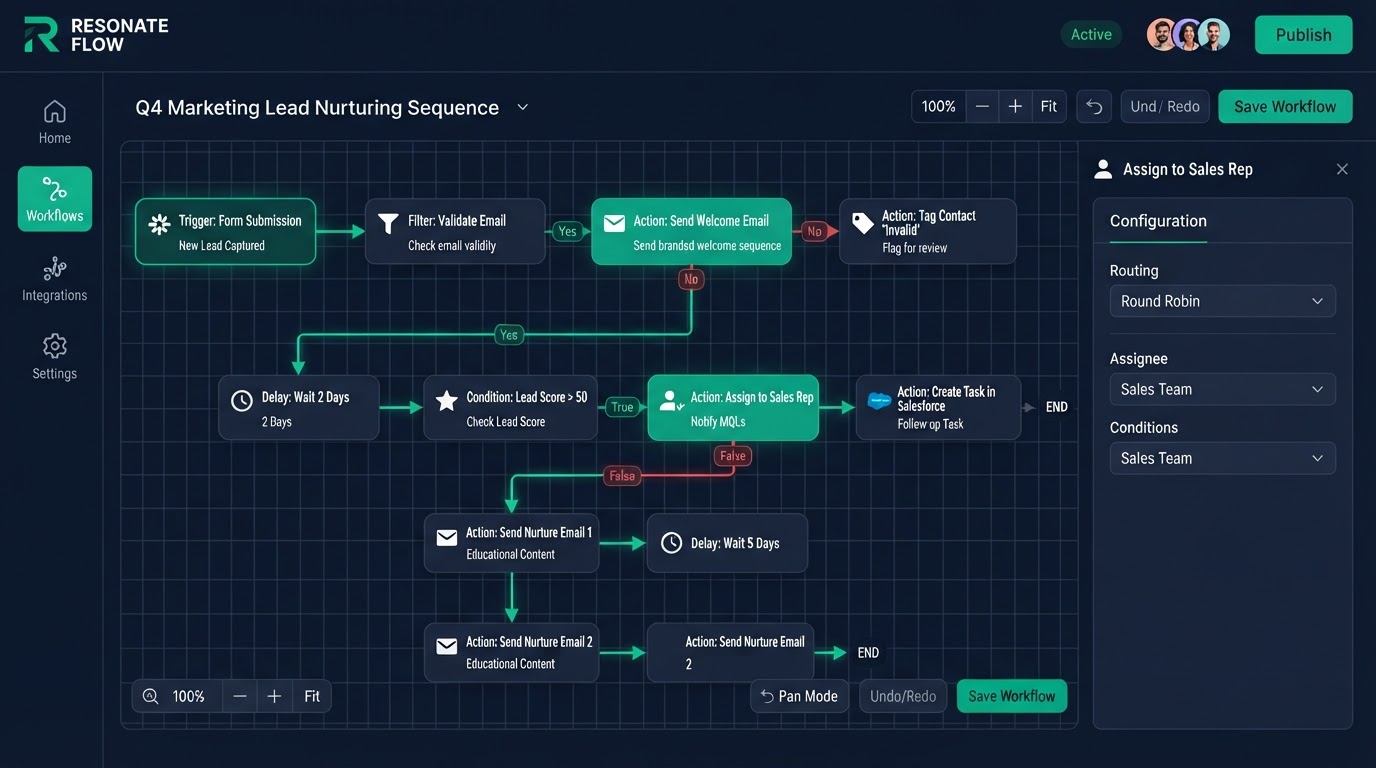
This is where the magic happens. A connected workflow is what turns events into action. Let me walk you through a real setup we build for clients. Step one. An event happens in ClickUp. Maybe it is task assignments, project updates, and completions. The integration catches that event. Step two. The integration creates or updates a contact in your CRM. It records the event in the contact timeline. Now your CRM knows what happened. Step three. A workflow triggers automatically. The workflow does a task sync, a project update, and a notification. All of this happens in seconds. No human needed. Step four. If the contact responds, another workflow triggers. Maybe it assigns a task to your sales team. Maybe it sends a booking link. The system keeps moving the lead forward. This is the power of integration. Every event becomes a trigger. Every trigger moves the lead closer to a booked call. We build these workflows for clients every week. Once set up, they run 24/7 without any manual work.
The turn CRM events into project tasks Workflow
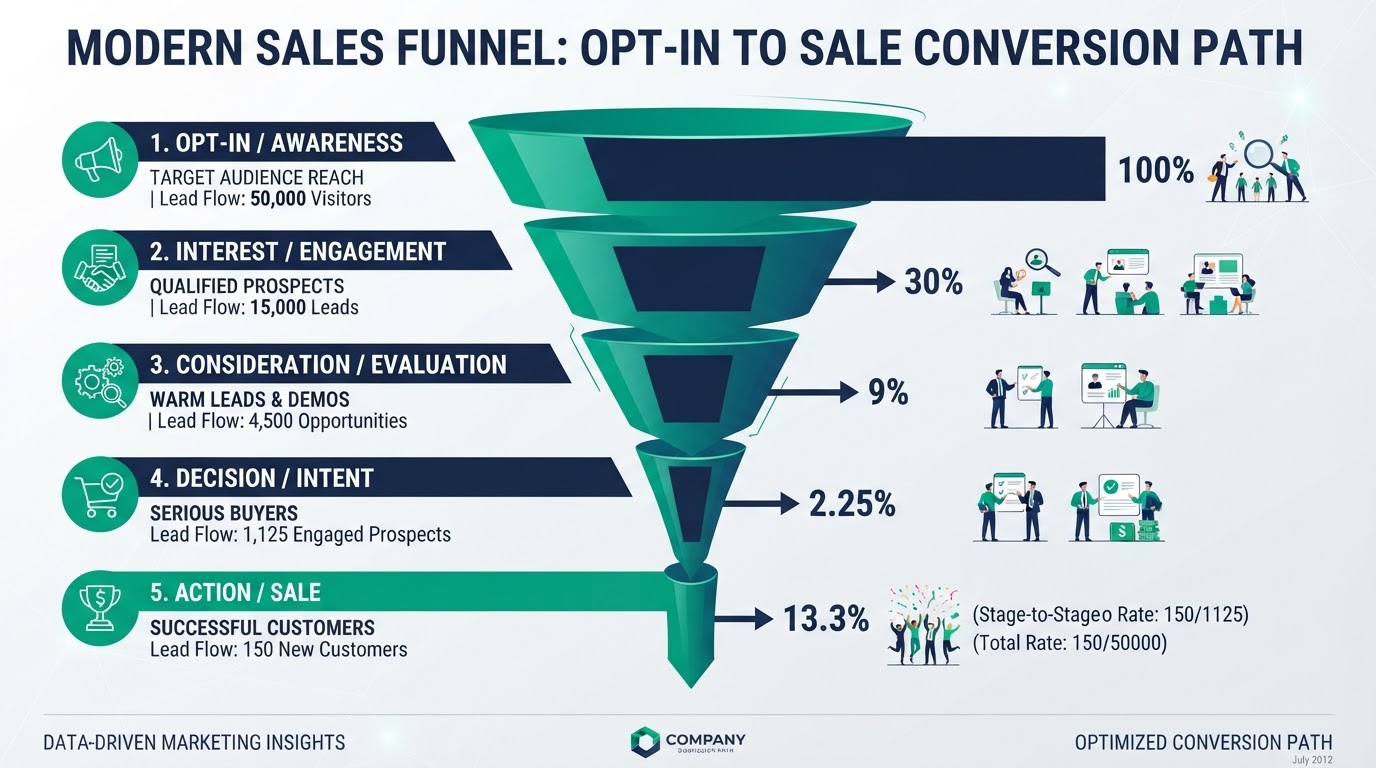
Let me share one of the most valuable workflows we build. It is the one that turn CRM events into project tasks. Here is how it works. An event happens in your project management tool. The integration triggers a CRM workflow. The workflow sends a booking link or a follow-up message right away. If the contact responds, a preparation workflow kicks in. It sends reminders. It assigns tasks. It gets your team ready. This turns passive engagement into real action. Instead of just collecting data, you are moving leads toward a booked call. That is the whole point. I will give you a real example. An agency used ClickUp for projects but had to manually create tasks when deals closed. We connected their CRM so every closed deal auto-created a project in ClickUp. Their onboarding time dropped from 2 days to 2 hours. That is the kind of result a good workflow delivers. It is not theory. It is what happens when your tools are connected and your automation is set up right. The key is timing. The follow-up should happen within seconds, not hours. Speed is what wins deals. And automation is what gives you that speed.
API and Webhook Connections
For businesses that need custom integrations, your CRM has a full API and webhook system. This is the most powerful way to connect project management tools. The API lets you create contacts, update fields, trigger workflows, and sync data. You can connect any project management tool that has an API. Webhooks let you receive events from external tools in real time. No polling. No delays. Here is when you need a custom API integration. You need it when Zapier or Make does not support your tool. Or when you have high volume and Zapier gets too expensive. Or when you need real-time sync that no-code tools cannot deliver. We build custom API integrations for clients who need them. The setup is more complex. But the result is a connection that is faster, cheaper at scale, and more reliable. If you have a custom need, this is the way to go. One warning. Custom API work requires a developer who knows what they are doing. A bad API integration can corrupt your data. Always work with someone who tests thoroughly before going live.
Zapier vs Make vs Native API
Businesses often ask me which integration method to use. Zapier, Make, or custom API? Here is how I break it down. Zapier is the easiest. It connects to thousands of tools. You can build an integration in minutes without code. But it charges by the task. If you have high volume, the bill adds up fast. Make is similar to Zapier but often cheaper. It has a visual builder that some people prefer. It also charges by task, but the pricing is usually better for high volume. Custom API is the most powerful. It is faster. It is cheaper at scale. And it can do things no-code tools cannot. But it requires a developer. And it takes longer to set up. Here is my rule of thumb. Start with Zapier or Make if you are testing. Move to custom API when your volume grows. We help clients make this call based on their real numbers. There is no one-size-fits-all answer. It depends on your volume, your budget, and your needs.
Common Integration Mistakes to Avoid
I have seen a lot of integrations go wrong. Here are the most common mistakes and how to avoid them. Mistake one. Not syncing events to your CRM. Some businesses connect their tools but never sync the events. The data stays siloed. You cannot act on what you cannot see. Always sync events to the contact timeline. Mistake two. Not building workflows that turn CRM events into project tasks. An integration without a workflow is just data storage. You need the workflow to turn data into action. Events should trigger follow-up, booking, or tasks. Mistake three. Not testing before launch. A broken integration means lost data. And lost data means lost leads. Always test the full path end to end before you go live. Send a test event. Check if it lands in the CRM. Check if the workflow fires. Mistake four. Not using native options when they are enough. Many businesses pay for external tools they do not need. If the native option does the job, use it. Save your money. Mistake five. Bad field mapping. If fields do not match, data lands in the wrong place. Always document your field mapping before you move any data. We do this for every single client. It prevents 90% of integration problems.
How We Set Up Integrations for Clients
Let me walk you through our process. This is exactly how we set up project management tools integrations for clients. First, we understand your needs. We look at what project management tool you use. We look at what events matter to you. And we look at what workflows you want to trigger. If native options are enough, we set those up. If you need external tools, we connect them. Second, we document the field mapping. Every field in your external tool gets matched to a field in your CRM. Nothing is left to chance. This document becomes our blueprint. Third, we build the integration. We connect through Zapier, Make, webhooks, or custom API. We build the connected workflow with event sync and automation. Every event triggers the right action. Fourth, we test the full path. We send test events. We check the contact timeline. We verify the workflow fires. We do this until everything works perfectly. Fifth, we record a Loom walkthrough. You get a video showing exactly how the integration works. So your team knows what to do if something needs adjusting. Every project includes 15 days of free support. If anything breaks, we fix it. Book a free call and we will scope your integration. No pressure. Just honest advice on what you need.
Get 1 Month Free + Free Setup + Free Support
Start your platform account through our link and get an extended 30-day free trial — plus we'll set up your system, build your first workflow, and support you for free. See it working before you pay a cent.
Claim 1-Month Free TrialThe bottom line
So there you have it. You can connect your CRM to ClickUp, Asana, Monday.com, Trello, and many more project management tools. The key is to pick the tool that fits your workflow. Then connect it properly. And build workflows that turn events into action. If you want your project management tools connected with a Loom walkthrough and 15 days of free support, we can build it. Start through our link for 1 month free, free setup, and free support. Book a free call today. We will look at your setup and tell you exactly what you need. No pressure, just honest advice.
Frequently asked questions
Quick answers to the most common questions about where can i find plugins or apps that link gohighlevel with project management tools.
Written by certified experts — not AI filler
Every recommendation on this page is based on systems we have actually built and tested for real clients. We document the trigger logic, pipeline stages, and automation flows we deploy — then publish the before/after metrics from live projects. We do not recommend setups we have not delivered ourselves.
Author: CertifiedHighLevelExperts · Reviewed by: Certified GoHighLevel Experts Team · Last reviewed: 2026-09-16
Related topics for Plugins & Apps That Link GoHighLevel with Project Management Tools
If you're researching where can i find plugins or apps that link gohighlevel with project management tools, these related terms and concepts come up next. We build all of them inside GoHighLevel.
Primary keyword
Secondary keywords
Related concepts (LSI)
These terms reflect real search intent around where can i find plugins or apps that link gohighlevel with project management tools. We cover each one in the content above and link to the relevant service, industry, or resource page so you can go deeper.
Was this article helpful?
Your feedback helps us write better guides.
Keep reading
Related services and industry guides to help you put this into action.